 DeskUtils
Capture Text · ⇧⌘2
Copy text from anything on your Mac screen
Select an area of the screen and DeskUtils copies the text it finds — from images, videos, slides or apps that won’t let you select. It also reads QR codes. Text recognition runs on your Mac.
Free version available · Requires macOS 15.2+
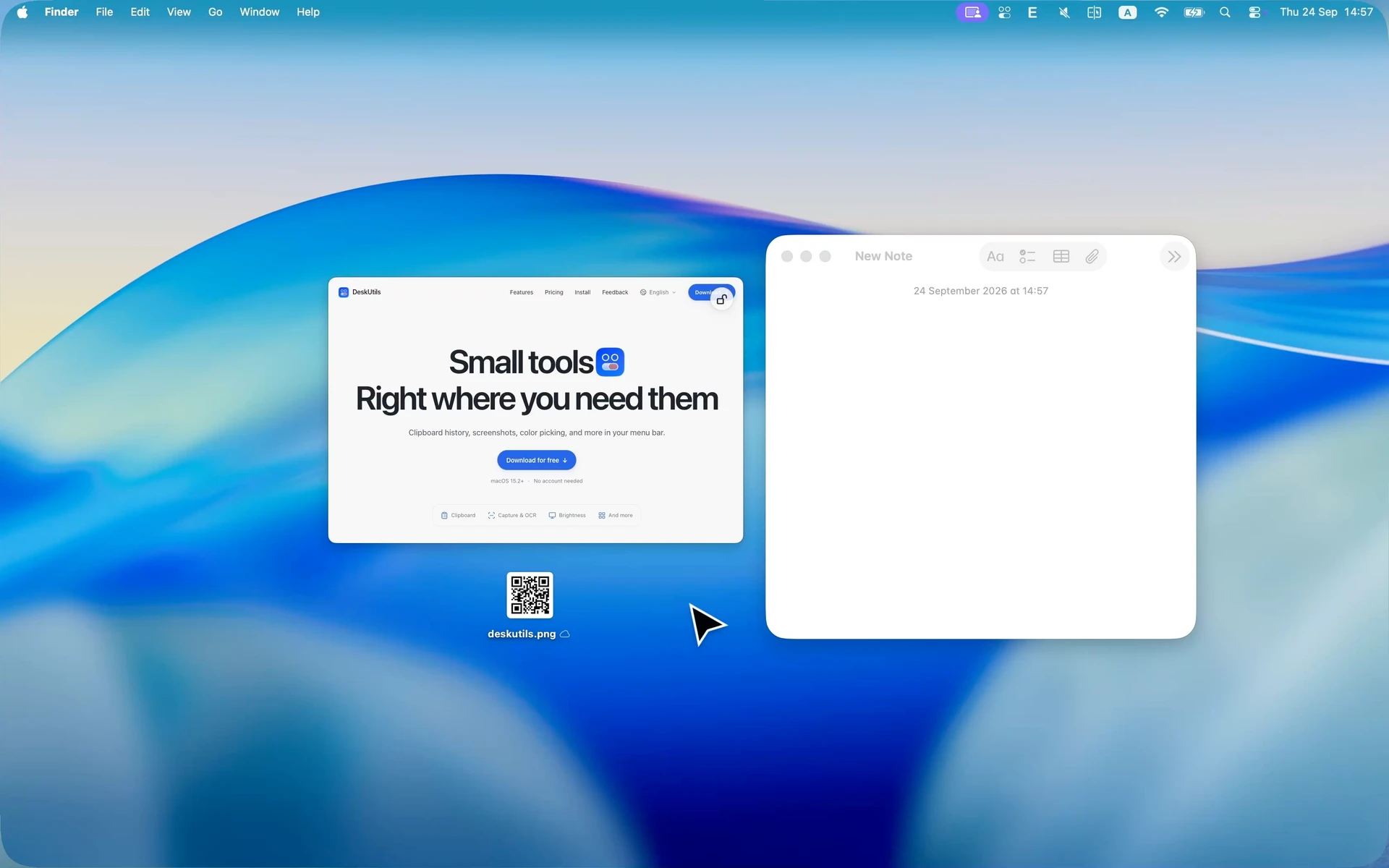
Text in images and videos
Copy a quote from a screenshot, a paused video or a photo.
Slides and shared screens
Grab the action items from a slide during a call.
Apps that won’t let you select
Copy an error message or a label you can’t highlight.
QR codes
Read a QR code without reaching for your phone.
Select a QR code on screen and DeskUtils reads it. The result is copied as text or a URL — it does not open the link for you.
Privacy
Text recognition runs on your Mac
What you select is processed on your Mac. DeskUtils requests Screen Recording so it can read the screen, and Accessibility for supported capture interactions.
How to allow permissions →Shortcuts
Three ways to start
- Keyboard shortcut⇧⌘2
- Quick Ring⌘ ⌘
- Screenshot menuMenu bar
Capture Text questions
How do I copy text from the screen?
Press ⇧⌘2, or choose Capture Text (OCR) from the Screenshot menu or Quick Ring, then select the area with the text.
Does Capture Text upload my screen?
No. Text recognition runs on your Mac.
Why does it need Screen Recording permission?
macOS requires Screen Recording before any app can read what’s on screen. DeskUtils uses it for screenshots, screen text recognition and sampling on-screen colors.
Can it read QR codes?
Yes. Select a QR code on screen and DeskUtils reads it, then copies the result as text or a URL.